Keeping your camera well maintained involves keeping it free of dirt, dust and water, charging the battery, formatting the memory cards, and keeping up with firmware updates.
The software that runs all the operations on a camera is called firmware. Designed by the manufacturer, firmware is used to work with all the hardware components like the sensor, battery, focus motors, and displays; and we work with it in the form of the menu system and the other various on-screen interactions. As with software on a computer, the many lines of code can inadvertently include bugs or compatibility issues.
The responsibility for correcting these problems lies with the manufacturer, and most are quite good at offering relatively quick fixes to known problems. Updated firmware is created and then released for owners to download for free. However, it’s up to you to discover that the new firmware exists, and for you to install it on your camera.
The process for updating has gotten easier over the years and the manufacturers have also used the updates as an opportunity to offer other improvements in performance, as well as new features. It’s wise to keep your camera up-to-date with firmware that will give your camera the best performance.
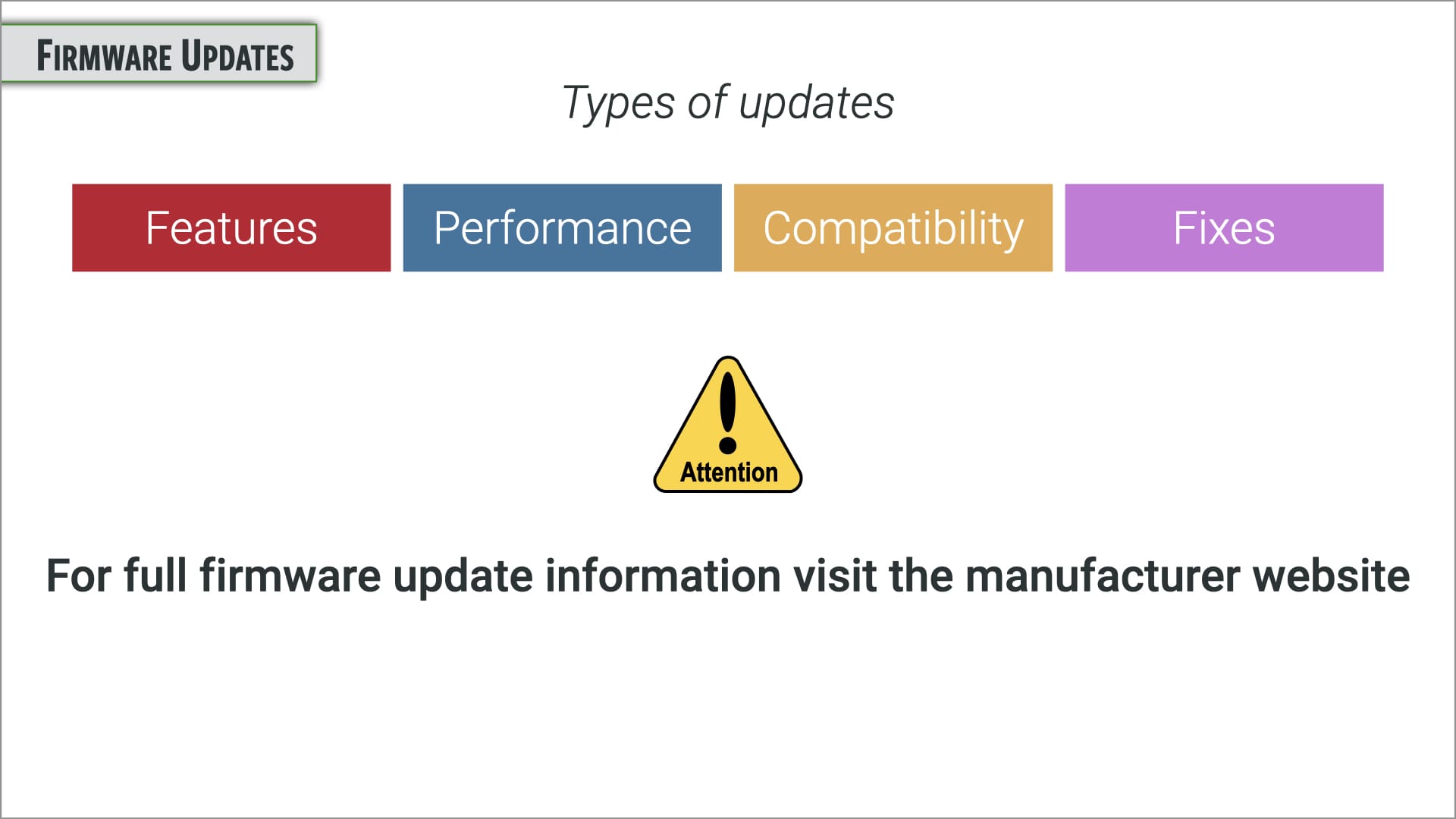
Types of updates
Firmware updates can come in many forms but most address one or more of four types of changes: fixes, compatibility, performance, and features.
Fixes
All cameras, and their associated firmware, suffer from minor bugs. These minor software issues may only be initially noticed by a small portion of users. Minor bugs could be a misspelling in one of the available languages or a feature that has an inconsistent aspect to its operation.
Minor bugs are rarely noticed by most owners, however the manufacturers are frequently alerted to the problems by the vocal few that notify them. Manufacturers are alerted to problems from their ambassadors, repair technicians, sales team, as well as directly from customers.
Compatibility
There are lots of devices that physically or wirelessly connect to and communicate with modern cameras, such as: lenses, flashes, memory cards, batteries, phones, computers, monitors, printers, servers, and more. Maintaining proper communication between both devices ensures problem free operations.
Manufacturers are usually only committed to making their cameras compatible with products within their own product line, but sometimes it’s in their best interest that their cameras are available to work with a wide variety of products, as in the case of memory cards. Improving communications is one of the most common items in a firmware update.
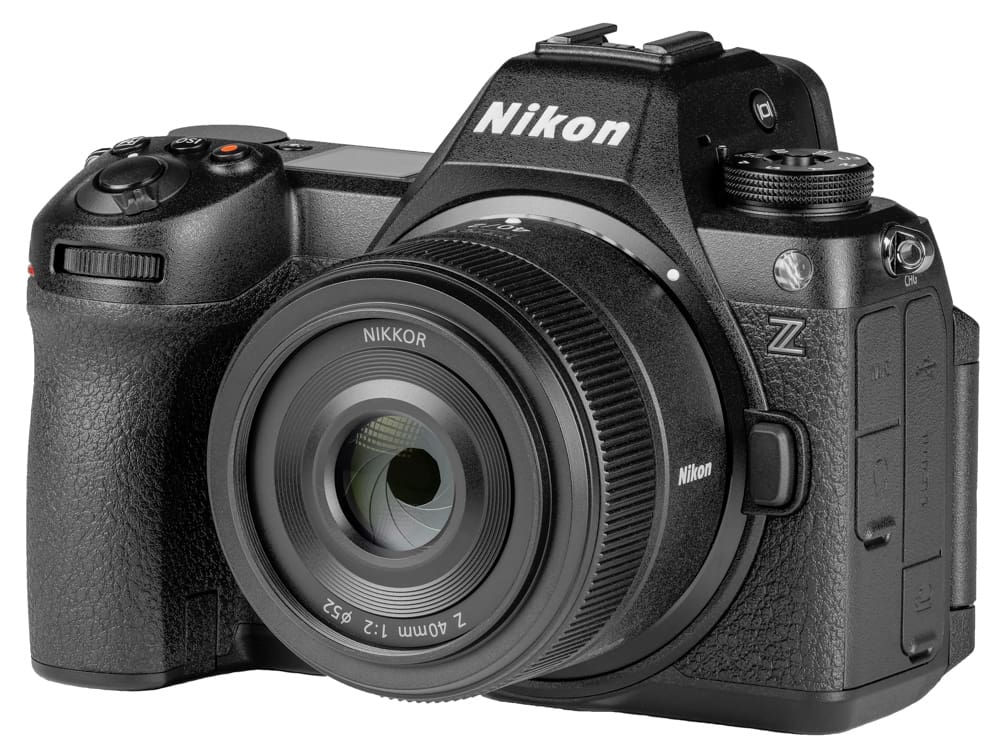
A good example of a compatibility issue is when Nikon released a new cine-style zoom lens that featured a power zoom. The ability to zoom the lens via buttons on the camera suddenly became a new possibility. It’s highly likely that the team building the camera’s firmware knew about the upcoming power zoom lens and it’s capabilities, but didn’t want to include this new feature at the time of the cameras release. Having a feature with no way to use it, doesn’t look very good, so Nikon decided to wait to add that feature with a firmware update. Nikon also may not have wanted to give hints as to what new products they would soon be bringing out.
Performance
Improvements to performance are not as common as other changes in firmware updates. From time to time the camera engineers figure out ways to squeeze out better performance in autofocus, white balance, exposure, or some other category. Sometimes the performance change is quite impressive, I’ve known of some firmware updates that have nearly doubled the buffer rate or offered brand new video recording formats.
The most common performance enhancement is related to the autofocus system — like speeding up focus acquisition and improving the subject identification in the tracking modes.
Features
The most exciting aspect of new firmware announcements is when new features are introduced. The Nikon Z 6III recently added birds to the list of recognized subjects, added an Auto Capture feature for unattended automatic photo and video capture, and added a host of other smaller features and options. There are so many new features in the latest firmware update that Nikon created a new 113 page reference guide covering all the features.
New features may be introduced for a number of reasons. If a lower-end camera is introduced with new features, an older, but more advanced model may see a firmware update so as to help keep its status as a higher-end product.
As a camera ages and starts to lose in sales to newer, similar-priced competitors, new firmware can help revitalize interest and sales. If the replacement for a particular model is taking longer than expected to make it’s way to market, a firmware update in the older model can help bridge the gap in time until a new offering is available.
How to update
Updating the firmware on your camera is quite easy and something all photographers should be comfortable doing. While exact steps may vary between the brands, there are many commonalities.
1. Start with an internet search for your camera brand and model and add the word “firmware”. You should easily find a website with your manufacturer that gives you an option to download the firmware file. Of course there will be a users agreement that you’ll have to check before downloading.
2. If there’s more recent firmware than that in your camera, start by formatting a memory card in the camera who’s firmware you plan to update.
3. Copy the downloaded firmware from your computer onto that formatted card. A computer with an SD slot is good to have, or you can use a card reader. It’s best to not have any other data on the card containing the firmware, thus the formatting beforehand.
Note – Before updating your camera’s firmware, make sure you have a well charged battery, 80% or more, to ensure your camera will have power to handle the entire transfer process. If your camera has more than one card slot, remove other cards and use card slot one, if you have two slots to choose from.
4. Navigate to the firmware listing in the menu system and your camera should recognize the firmware on the memory card and offer you an option to update the firmware. The update process will likely take several minutes (rarely more than 10 minutes), and you should not interrupt the process in any way; just let the camera sit there and do its thing. A notice is usually displayed when the process is completed.
5. It’s recommended that you then reformat the memory card before using it for storing images and video.
A word of warning
Most newly issued firmware will help improve a camera’s operation, fix bugs, give better performance and add new features. However, from time to time, newly introduced firmware contains an unexpected flaw and causes problems. Once discovered, the firmware is pulled from the website and a statement is usually issued, sometimes with descriptions of the problem.
Back at the manufacturer’s headquarters you can be sure hardware and software engineers are working overtime to fix the problem. However, creating a subsequent updated firmware fix may take weeks or months, depending on the problem and the solution.
Seasoned photographers rarely update firmware in the first couple of weeks of it being introduced. It sometimes takes a few days after the release before problems start to emerge. As users start to share experiences, patterns emerge, and specifics about the problem are able to be identified. Most notable problems are identified in the first couple of weeks.
There are more than enough people with little patience, and a high desire to experiment, that you don’t need to be a firmware guinea pig. Wait at least a week, preferably two or three, before updating to the new firmware if you value your time.
Complete Camera Guide updated videos
When popular cameras get a significant update to their firmware I like to bring out an update video to add to the relevant course. The free update videos are for anyone who owns the full version of the course. To access the video just log into your account and access the course with the added video (Course Download Instructions). You should find the firmware video at the bottom of the list of course assets.
Courses with added Firmware update videos (as at Feb 2026):
When do courses get updated?
Update videos will only be added to courses when there’s significant and notable firmware updates. Most firmware is listed as a three digit number indicating the scope of the firmware change. Going from 1.00 to 1.01 is a very minor change, when 1.10 is issued, there’s a more notable change. When updating from 1.10 to 2.00 there are usually several changes, likely having some notable new features.
I will generally only do an update if there has been a significant update that changes the features or operation of the camera. I will not update a course simply because new firmware exists. We will try to bring out the firmware videos as soon as we can, but we need to slot the video into our regular production schedule of new courses, and this can take some time.
We currently have several updates in the product pipeline, which we will be releasing over the next few months.
Canon
Firmware updates with Canon, as of late, tend to be a bit on the lighter side and don’t typically offer notable changes in the features and operation of the camera.
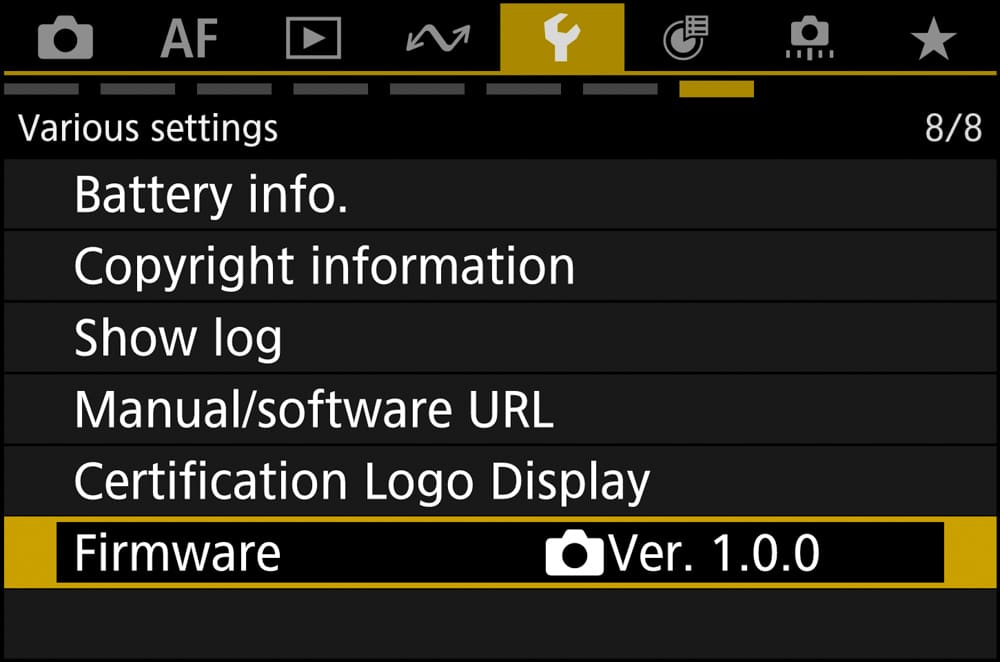
Canon’s “Firmware” menu setting is usually located on the last page in the “Setup” menu.
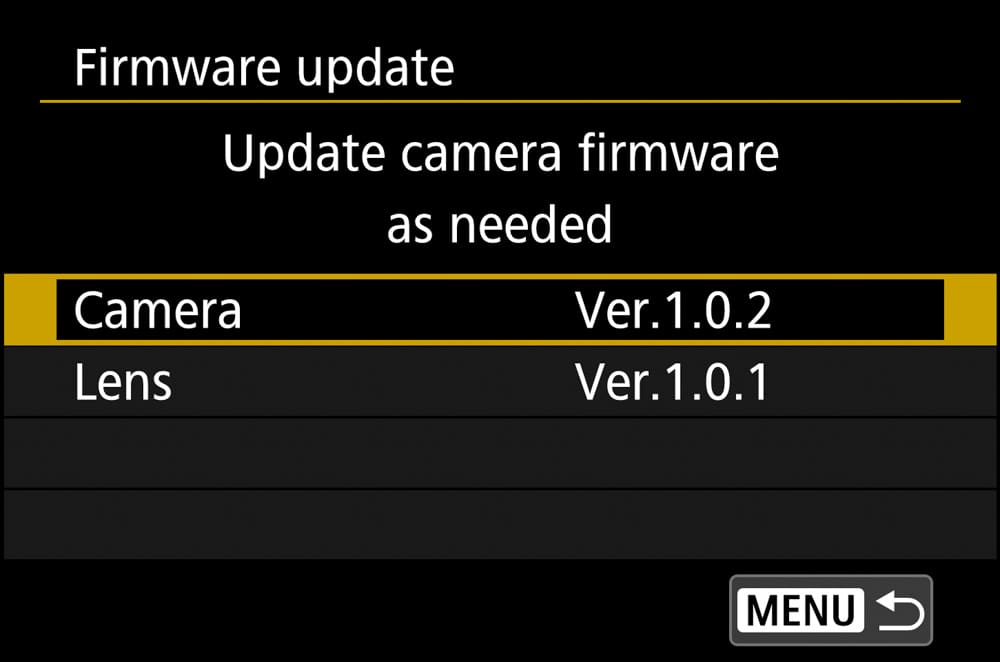
Canon also has firmware available for their lenses; they can be updated in the same process as camera firmware. You’ll need to attach each lens you have and go to the camera’s menu system to see what firmware the lens is currently working with.
Current Canon firmware (as at Feb 2026)
Camera model & Firmware version:
- R6 Mark III ~ 1.0.2
- R1 ~ 1.2.0
- R5 Mark II ~ 1.2.0
- R6 Mark II ~ 1.6.0
- R7 ~ 1.7.1
- R3 ~ 2.0.0
- RP ~ 1.6.0
- R6 ~ 1.9.0
- R5 ~ 2.2.1
- 90D ~ 1.1.1
Fujifilm
Years ago Fujifilm used to be the king of firmware updates, offering substantial improvements to current, older, and even discontinued models. In doing so they built a loyal following because they made all users feel like they were valued.
Fujifilm, these days, are only doing necessary updates. It’s my guess that the firmware update team took too many resources and cost too much money.
Checking firmware on newer Fujifilm models can be done by going to the “Set Up” menu and looking under “User Settings”. This access option is in addition to the older style of pressing the DISP/BACK button while turning the camera on; which you can still do.
Fujifilm also has firmware available for their lenses that can be updated in the same process. You’ll need to attach each lens you have and go to the camera’s menu system to see what firmware the lens is currently working with.
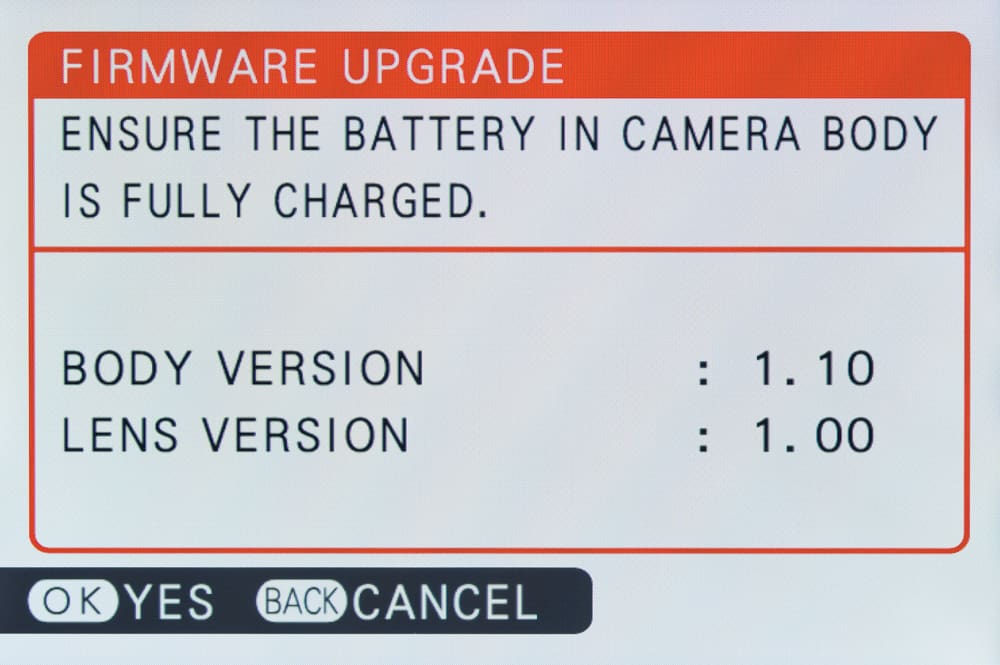
Current Fujifilm firmware (as at Feb 2026)
Camera model & Firmware version:
- GFX100RF ~ 1.10
- X100VI ~ 1.31
- GFX100II ~ 2.40
- X-T5 ~ 4.31
- X-T4 ~ 2.12
Nikon
Firmware updates with Nikon have been quite substantial over the last few years. The king of updates is the Z 9 which is all the way up to version 5.30. Along with the standard fare of bug fixes and compatibility issues, Nikon has been introducing a significant number of new features.
The process of downloading and updating firmware for Nikon cameras has been streamlined in recent years. No longer must you download a package where you need to extract the firmware file. Now, just download the firmware file and follow the standard process putting it on a memory card and into the camera.
You can find the menu setting for “Firmware version” at the end of the “Setup” menu. Nikon also has firmware available for their lenses that can be updated in the same process. You’ll need to attach each lens you have and go to the camera’s menu system to see what firmware the lens is currently working with.
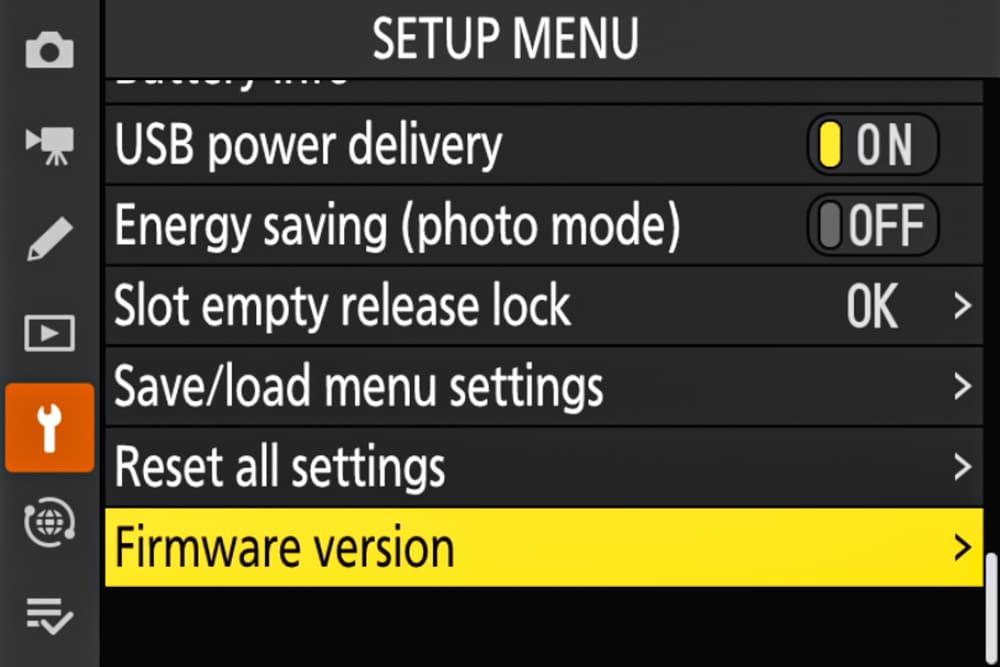
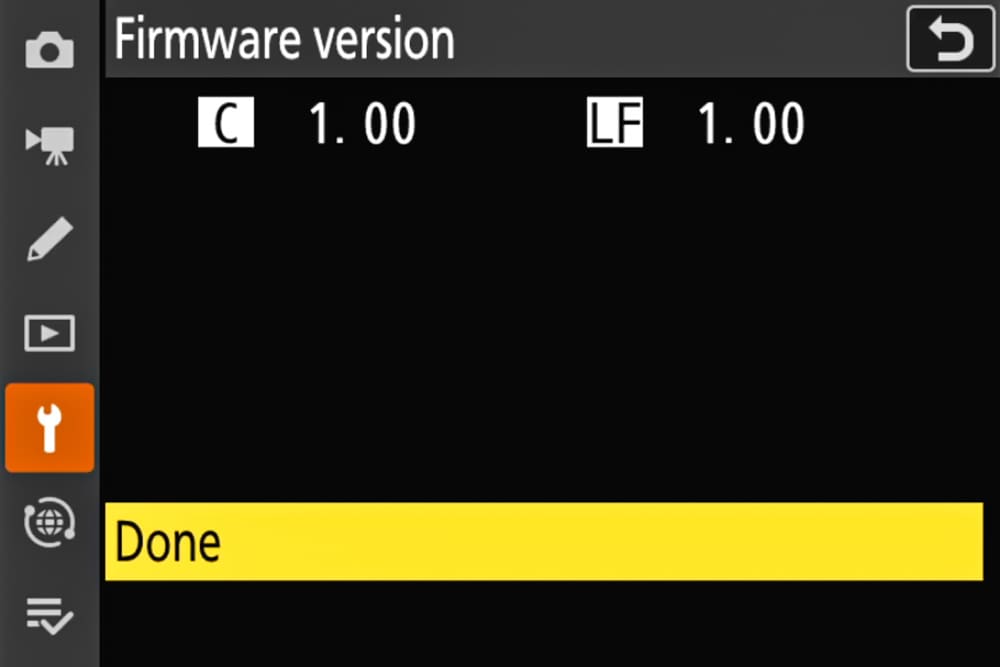
Current Nikon firmware (as at Feb 2026)
Camera model & Firmware version:
- Z 5II ~ 1.01
- Z 6III ~ 2.00
- Z 8 ~ 3.10
- Z 9 ~ 5.30
- Z 5 ~ 1.50
- Z fc ~ 1.80
- Z 6II ~ 1.70
- Z 7II ~ 1.70
- D780 ~ 1.20
OM System / Olympus
OM System cameras follow a different update procedure for loading firmware than most other companies. To update the firmware on an OM System or Olympus camera, you’ll need to connect your camera to a computer and use the OM “Workspace” software.
Step one is to download the current OM Workspace software for your computer; this can be accessed at OM System’s support page. With the downloaded program you’ll be able to update the firmware by connecting your camera via a USB cable to your computer and following the OM System instructions.

A few tips for the OM Systems users:
- remove memory cards
- set your camera’s USB connection to “storage”
- don’t use a USB hub when connecting to your computer.
With the OM Workspace program you should go to the “Digital Camera Updater” and start the update process.
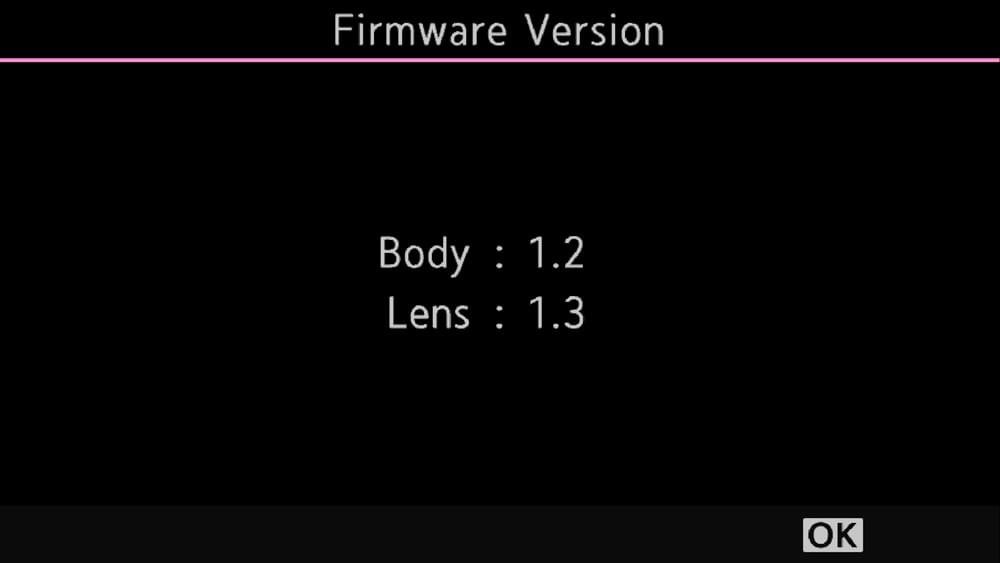
You can check your OM System or Olympus camera by going to the “Setting” or “Setup” menu and near the end you will find the “Firmware Version” option.
Current Olympus firmware (as at Feb 2026)
Camera model & Firmware version:
- OM-1 ~ II 1.3
- OM-1 ~ 1.9
- EM-1 Mark II ~ 1.6
Sony
Firmware update for Sony cameras have been rather tame in content with very few major changes to the features or operation of the camera. Several years ago they switched from connecting the camera to the computer to an easier and more common system of transferring the firmware to the camera via a memory card.
With most companies, going from firmware version 1.00 to 2.00 meant something significant had changed in the camera. With Sony, that may not be so. Sony does keep up with the bug fixes and compatibility issues but major number changes in version number are frequently disappointing to some users.
Sony’s firmware can be found, in current cameras running the new menu system (2021 and newer), in the “Setup” menu under the sub-menu “Setup Option” and then “Version”.
Sony also has firmware available for their lenses that can be updated in the same process. You’ll need to attach each lens you have and go to the camera’s menu system to see what firmware the lens is currently working with.
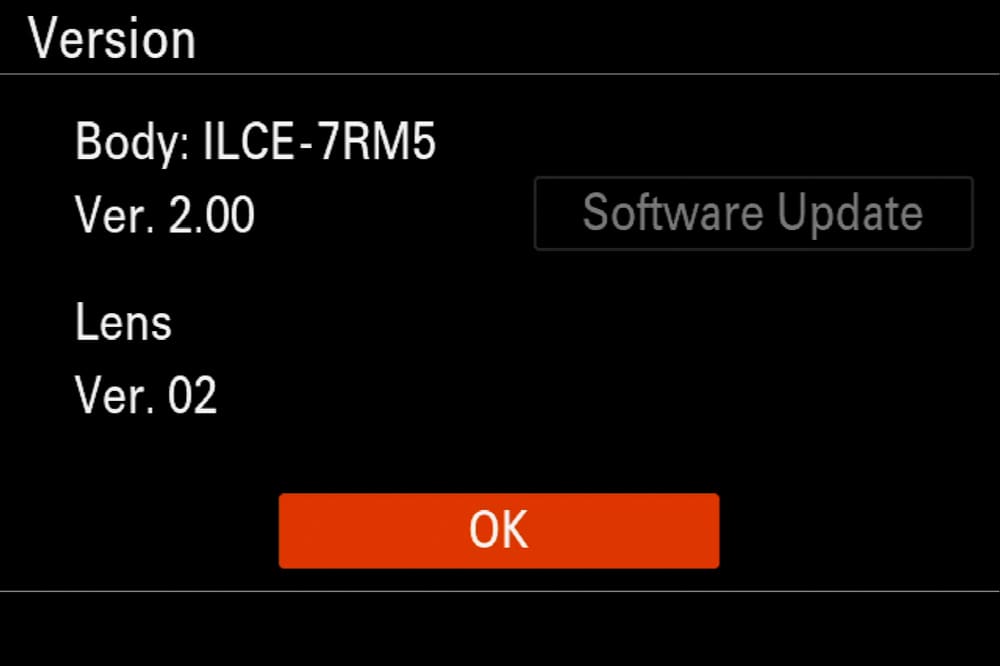
Current Sony firmware (as at Feb 2026)
Camera model & Firmware version:
- ILCE-7M5 ~ 1.00
- ILCE-7RM5 ~ 4.00
- ILCE-7M4 ~ 6.01
- ILCE-1 ~ 4.00
- ILCE-7C ~ 2.02
- ILCE-7RM4 ~ 1.20
Find your camera’s latest firmware here:
Canon: usa.canon.com
Fujifilm: fujifilm.com/us/en
Leica: leica-camera.com/en-US
Nikon: nikonusa.com
OM System: explore.omsystem.com/us/en/
Panasonic: shop.panasonic.com
Sony: electronics.sony.com
Pentax/Ricoh: us.ricoh-imaging.com
Become part of John’s inner circle
Sign up for the newsletter here — it’s free.
Want to become a better photographer?
Check out John’s selection of photography and camera classes here.